Overview
Cases serve as the primary mechanism for tracking and executing FinOps tasks generated within the platform through workflows. Effective case management and lifecycle oversight are fundamental to achieving successful FinOps optimization outcomes.
Understanding Our Case-Centric Approach
The platform deliberately employs "Cases" rather than "Recommendations" terminology. This distinction reflects our commitment to treating optimization opportunities as actionable business requirements rather than optional suggestions. Each case demands:
- Defined Service Level Agreements (SLAs)
- Clear ownership accountability
- Specified resolution timeframes
Case Management Framework
The enhanced lifecycle management system provides:
- Real-time environment status monitoring
- Comprehensive optimization tracking
- Systematic governance controls
- Progress measurement against defined goals
Through this structured approach to case management, organizations can maintain continuous oversight of their optimization initiatives while ensuring systematic execution of FinOps objectives.
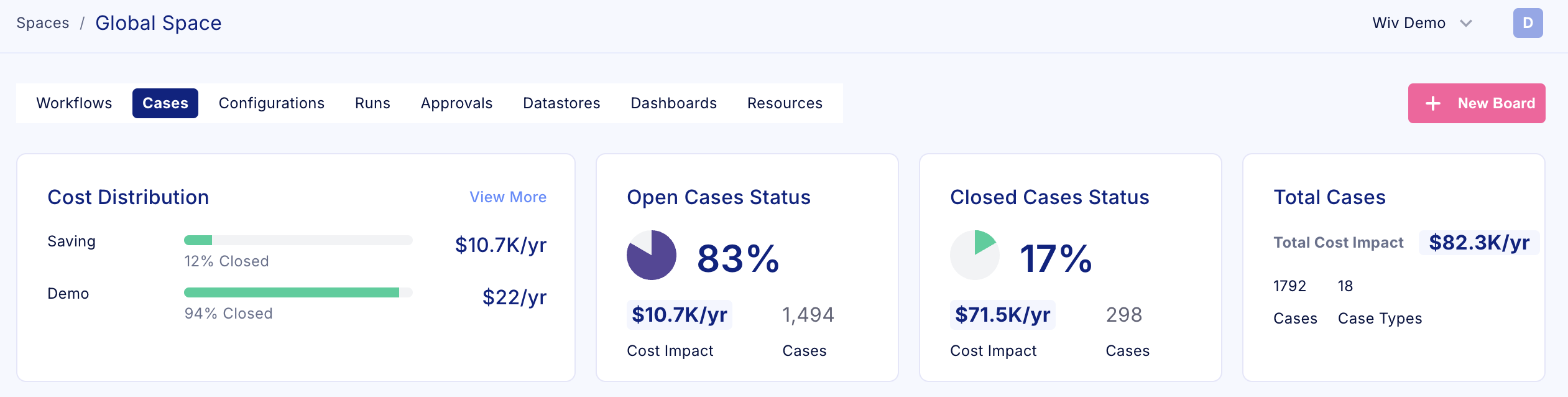
Navigations
There are two ways to review the platform cases:
- Global View- The Cases page, accessible through the left navigation bar, provides a centralized view of all boards across every Space within the platform. This consolidated interface enables efficient monitoring and management of all optimization initiatives.This unified dashboard streamlines case oversight by
- Aggregating cases from multiple Spaces into a single, comprehensive view
- Facilitating cross-Space case management and tracking
- Enabling efficient workflow monitoring across the organization
Through this centralized interface, teams can effectively coordinate and track optimization efforts across the entire infrastructure landscape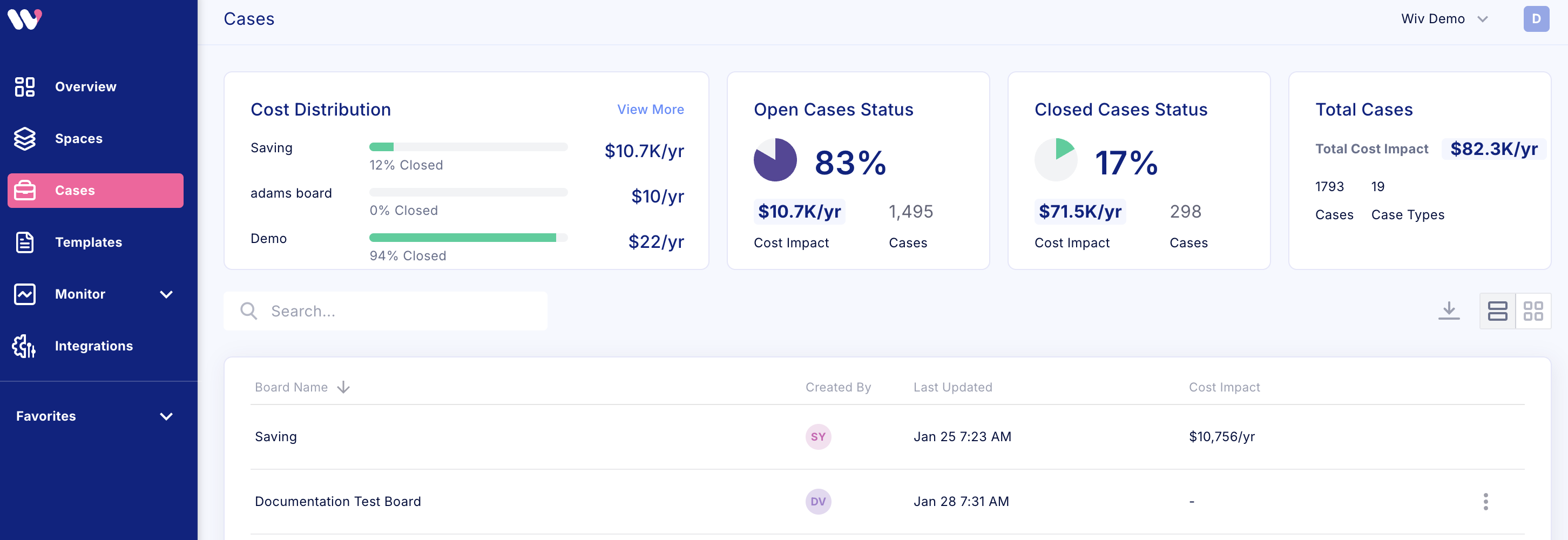
- Space View- When navigating to a specific Space, the Cases tab displays all relevant boards containing cases exclusively scoped to that particular Space. This focused view provides:
- Space-specific case management
- Targeted oversight of optimization initiatives
- Clear visibility of cases relevant to the Space's scope
This organizational structure ensures teams can efficiently manage and track cases within their designated operational boundaries.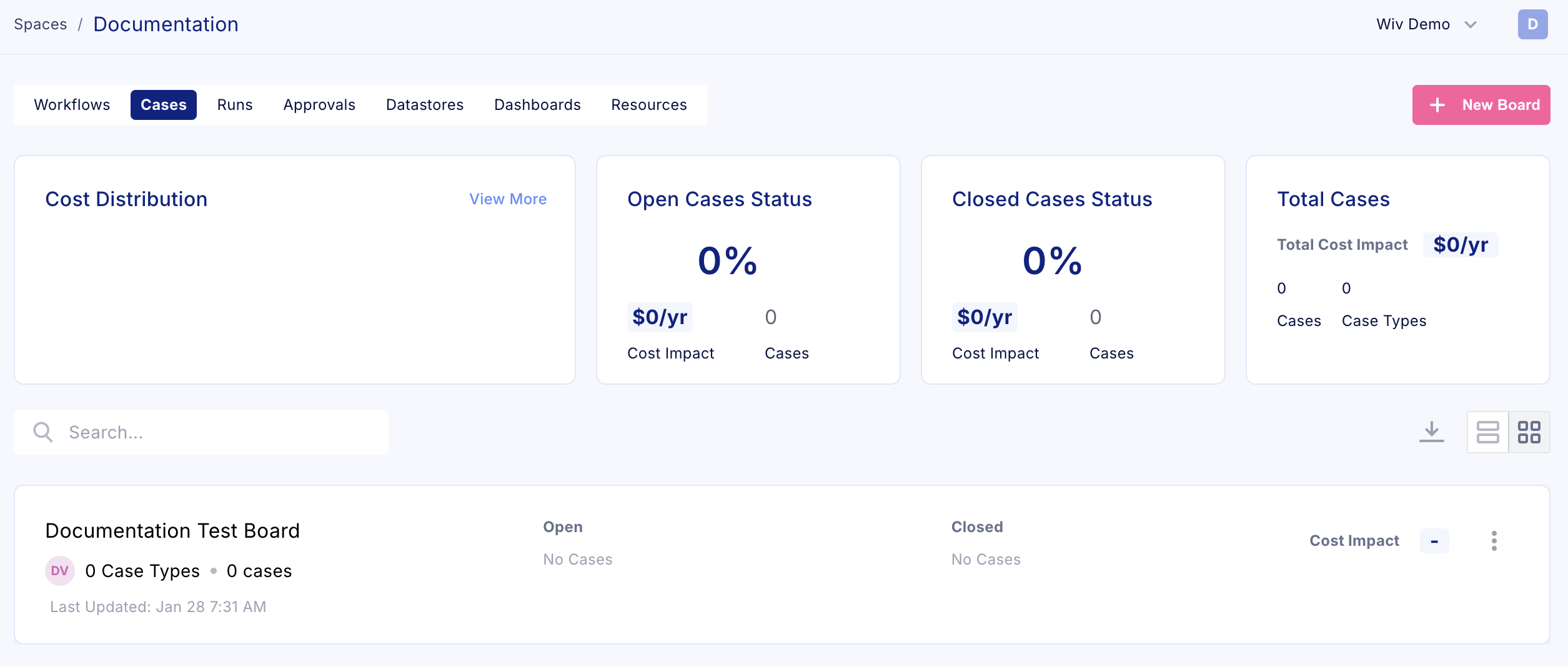
Working with Cases
Board Creation
Within the Space view, users have exclusive access to board creation functionality. To initiate a new board:
- Navigate to the Space's Cases tab
- Locate and select the New Board button in the top right corner of the cases page
This Space-level board creation approach ensures proper organizational hierarchy and maintains clear ownership of case management structures.
Writing Cases
Writing cases is done by utilizing the Write Cases Step
Cases Information
Note
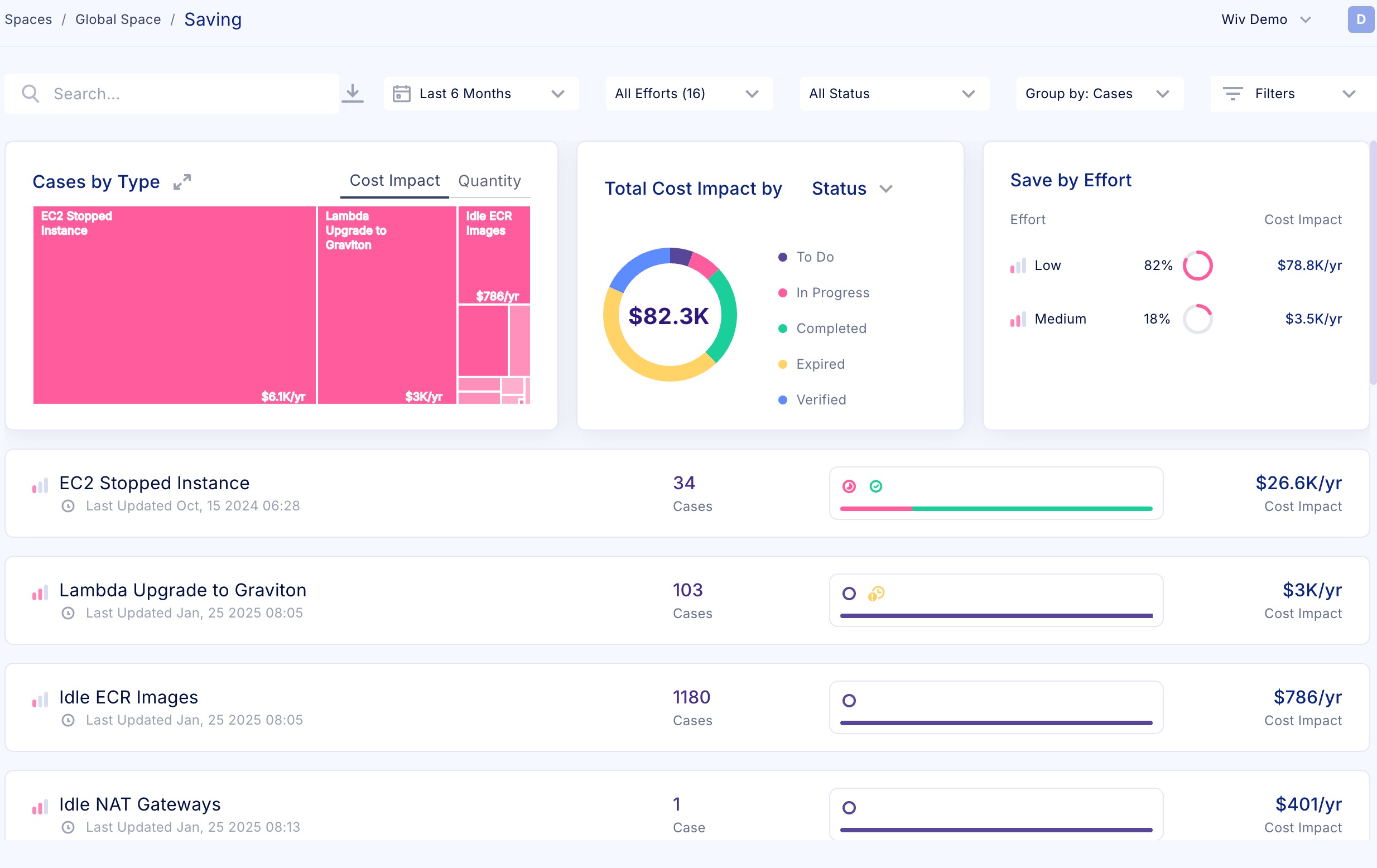
The Status filter defaults to displaying only Open statuses.
To view all cases, adjust the Status filter accordingly.
When accessing a board, you'll find a comprehensive view of all associated cases. The interface provides flexible organization through grouping and filtering capabilities
- Cases are automatically grouped by Type
- Type classification indicates similar FinOps opportunities across resources
- Examples include:
- EC2 stopped instances
- Detached EBS volumes
- RDS extended support scenarios
Case Item Details
Each Case Item provides detailed information including:
- Specific recommendation criteria
- Verification parameters
- Resource handling status
- Source workflow reference
- Comprehensive activity log tracking:
- Progress updates
- Information notes
- Historical case activity
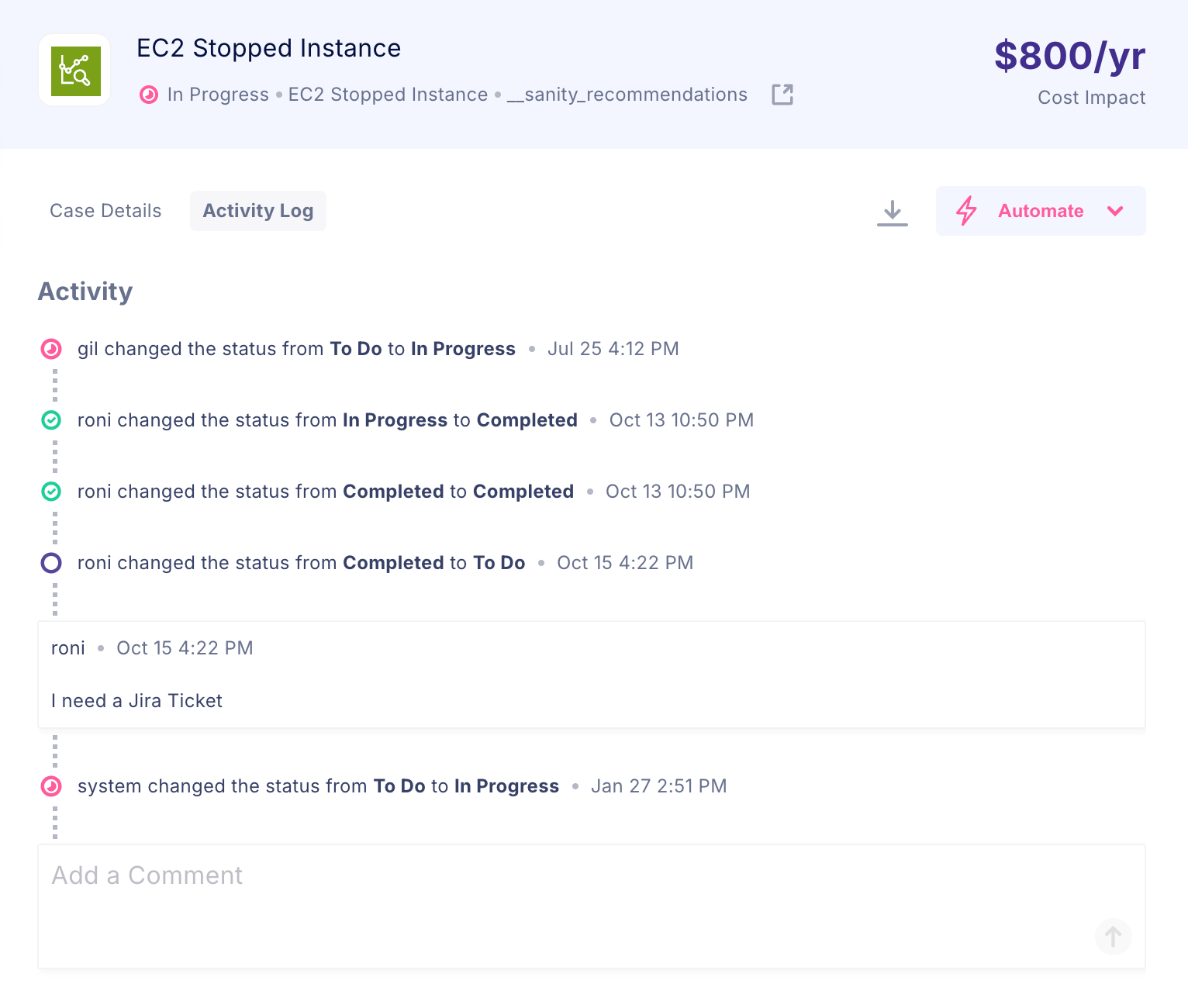
This structured approach enables efficient tracking and management of individual optimization opportunities while maintaining clear visibility of the broader optimization landscape.
Running workflows from Cases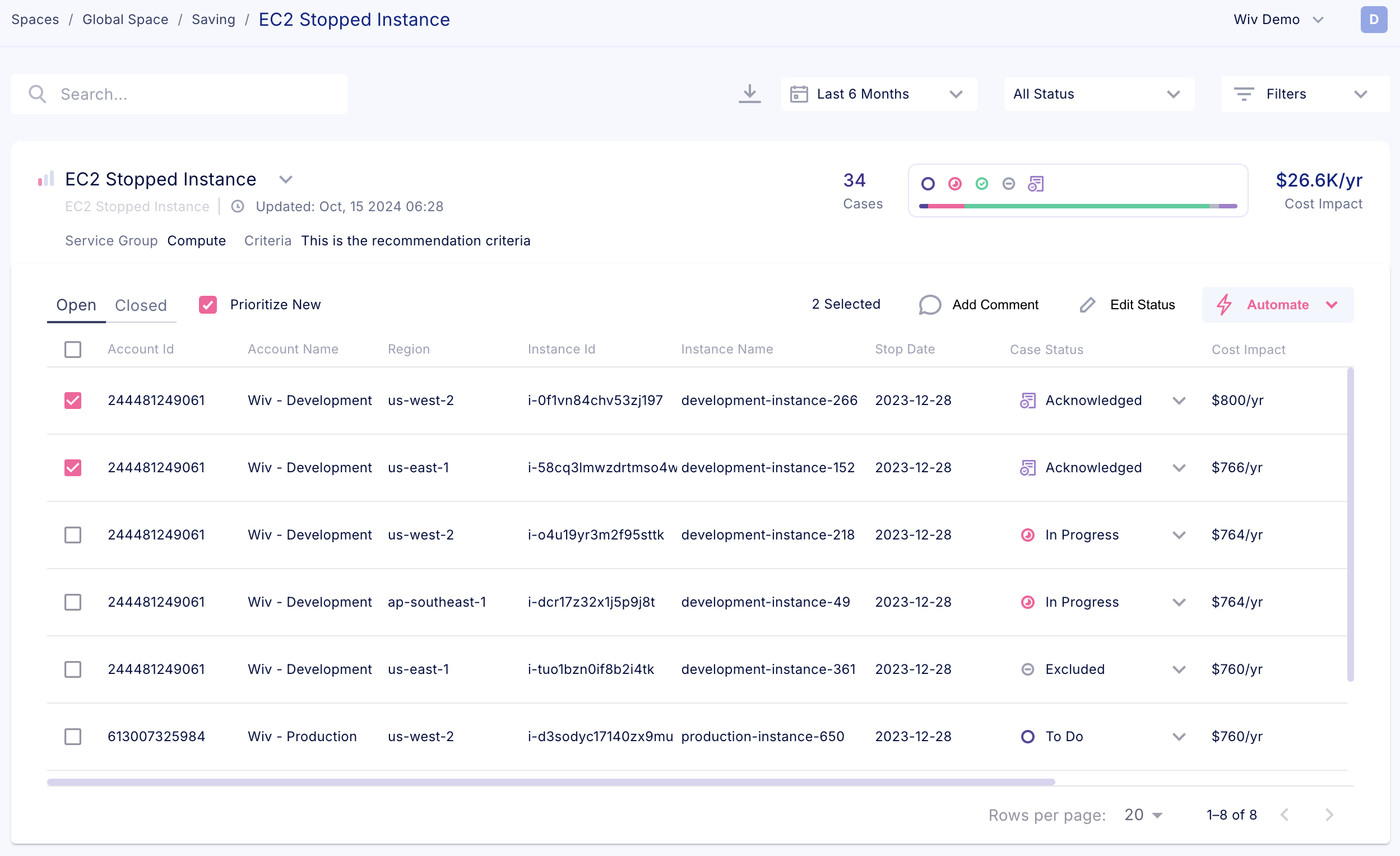
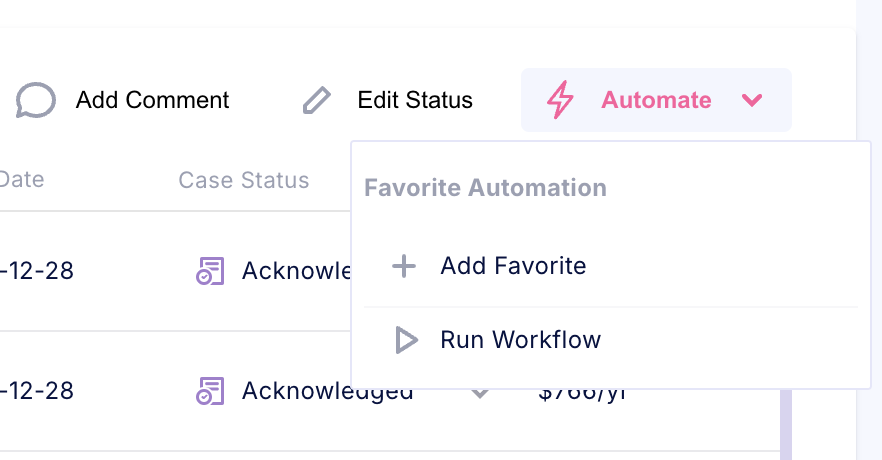
When viewing a case type, you can execute workflows on your selected cases through the interface. The process begins by selecting your target cases from the displayed list. After selection, locate the Automate button positioned in the top-right corner of the table. This button provides access to both favorite automations and supported workflows using the Records parameter, enabling streamlined execution of your chosen automation processes.
Was this article helpful?
That’s Great!
Thank you for your feedback
Sorry! We couldn't be helpful
Thank you for your feedback
Feedback sent
We appreciate your effort and will try to fix the article