The IF flow control is a fundamental tool in Wiv's workflow automation that helps you create dynamic, decision-based processes. It evaluates specific conditions and directs the workflow along different paths based on whether those conditions are true or false.
Think of it as a workflow's decision-making engine - much like a traffic controller at an intersection, directing your automation down different routes depending on whether certain criteria are met. This conditional logic is essential for building intelligent workflows that can handle various scenarios and respond appropriately to different situations.
This capability is one of the most frequently used features in Wiv, as it allows your workflows to make smart decisions and adapt their behavior based on real-time conditions rather than following a rigid, linear path.
When to use IF Flow Control
The IF operator is particularly useful in FinOps automations in scenarios like:
- Cost Thresholds: When a resource's cost is greater than a set budget (e.g., $1000), trigger an alert or automatic scaling action
- Resource Tagging: If a resource tag contains "Production", apply specific cost allocation rules; if tag is empty, flag for compliance review
- Budget Comparison: When actual spend less than forecast, approve resource provisioning requests; if greater than, require additional approvals
- Service Selection: If instance type equals "Reserved Instance", apply different pricing calculations than on-demand instances
- Compliance Checks: When billing tags not equals required format, route to a correction workflow
- Idle Resource Detection: If resource utilization less than 20%, flag for optimization review
These conditions help automate cost management decisions, resource optimization, and compliance enforcement in cloud environments.
Working with the IF Flow Control- To configure an IF condition in your workflow, follow these three essential steps:
- Key Selection: Identify the specific data point or variable you want to evaluate - this could be a cost value, resource tag, or any other workflow parameter
- Operator Choice: Pick the appropriate comparison operator (equals, contains, less than, etc.) that defines how you want to compare values
- Comparison Value: Define what you're comparing against - this can be a fixed value or a dynamic parameter from your workflow
For example, to check if a cloud resource's daily cost exceeds a threshold:
- Key: DailyCost
- Operator: greater than
- Value: 500
- Key Selection: Identify the specific data point or variable you want to evaluate - this could be a cost value, resource tag, or any other workflow parameter
- Operator Choice: Pick the appropriate comparison operator (equals, contains, less than, etc.) that defines how you want to compare values
- Comparison Value: Define what you're comparing against - this can be a fixed value or a dynamic parameter from your workflow
For example, to check if a cloud resource's daily cost exceeds a threshold:
- Key: DailyCost
- Operator: greater than
- Value: 500
You can make these checks dynamic by using workflow parameters instead of fixed values, allowing your conditions to adapt based on runtime variables and inputs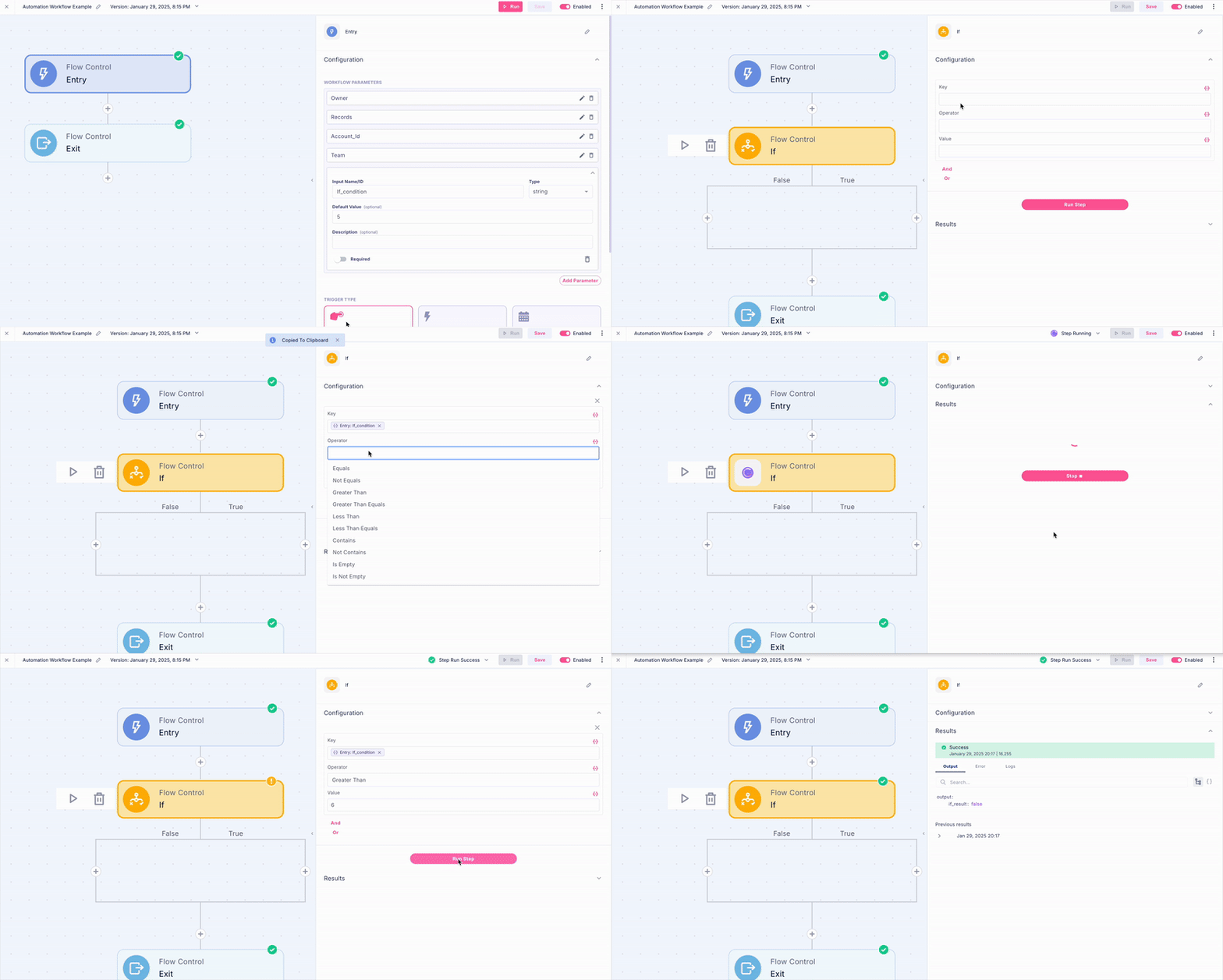
? Pro Tip:
To check if something is equal to an empty string, leave the value of the condition empty.
Was this article helpful?
That’s Great!
Thank you for your feedback
Sorry! We couldn't be helpful
Thank you for your feedback
Feedback sent
We appreciate your effort and will try to fix the article